Tuesday, April 01, 2008

Working with Jobs In MYOB Accounting (MYOB Tutorial Series)

How to use Jobs feature in MYOB Accounting?
You can use the Jobs feature in your MYOB Accounting to keep accurate and detailed records of your jobs and profit centres. Let’s assume that Clearwater Pty Ltd, our tutorial company, is part way through installing fifty water filters at the Island Way Hotel. This job has already been set up in our company file. The Edit Job window shown here displays information about the job, such as the start date, percentage completed, finish date and so on.

You can use the Jobs feature to simply keep track of your various jobs or to perform advanced functions such as set budgets by account for each job, track job expenses for customer reimbursables, analyse profit and loss for jobs, and much more.

Let’s assume that in order to install the water filters in Island Way Hotel, we had to purchase fifty wall brackets. We will assign this purchase to the job so that we can keep track of expenses for customer reimbursement when the job is complete.
  1. Go to the Purchases command centre and click Enter Purchases. The Purchases window is displayed.
  2. Enter the supplier’s name and date as shown.
  3. Enter 50 in the Received column.
  4. Enter 200-897B5 in the Item Number field and $4 in the Price field.
  5. Tab to the Job column and click the search icon.
  6. Double-click job 4980. The purchase is now allocated to thisjob.
  7. Complete the rest of the purchase as normal and clickRecord.
Analyse job activity
An important part of managing your job activity revolves around reviewing the data that you’ve entered for your jobs and understanding its effects on your overall financial picture. Understanding the “big picture” of your job activity will help you identify income trends, recognise possible cost overruns and anticipate your company’s future revenues. The Analyse Jobs window will help you perform this important task by providing lists of your job activity.

  1. Display the Analyse Jobs window. To do this, from any command centre, click the Analysis down arrow and choose Jobs.
  2. Enter 4980 in the Job Number field and press TAB. Detailed information about this job appears in the Analyse Job window. You can view the progress of this job broken down by account. You can also view any budgets you have entered for this job, and compare it with the actual expenses.

source: MYOB Accounting V12 Tutorial

Read More..

Friday, February 22, 2008

MYOB Tutorial: Customising and Printing Forms

These are the step by step tutorials:
1. Click Print Invoices in the Sales command centre. Make the selections shown below in the Forms Selection window. Click the Selected Form for Sale search icon.
2. Select MYOB’s Plain Paper Invoice and click Use Form. This template has been pre-customised to fit on plain A4 paper.


Click the Customise button in the Forms Selection window.
The Customise Item Sales window is displayed. You can customise the way your forms look, for example, by adding a logo or adding and removing text.


Related Posts:

Read More..

Tuesday, February 05, 2008

How To Reconcile Your Bank Account In MYOB Accounting

It's easy to reconcile your bank account in MYOB.
These are the tutorials:
To do this, go to the Banking command centre and click Reconcile Accounts.

Let’s reconcile the cheque account used so far in this tutorial. Although we have entered only two transactions, this will serve as an example of how spending and receiving cash relate to account reconciliation. To make the example more realistic, we will also add a bank charge to the bank statement. Let’s assume we received a bank statement dated 8/8/2002. The closing balance appearing on the statement is $24,495.
The statement shows three transactions:
• A deposit of $30,000
• A cheque for $5,500
• A bank charge of $5

To reconcile your cheque account:
1. Select the Cheque Account by typing 1-1110 in the Account field.
2. Tab to the New Statement Balance field and enter $24,495.
3. Enter 8/8/02 in the Bank Statement Date field. Press TAB.
Notice that the out of balance amount is –$24,495, and that the two transactions we have entered appear in the scrolling list. (Only transactions dated on or before the Bank Statement Date will appear.)
Now we need to match the transactions appearing on the bank statement with those listed in the Reconcile Accounts window.
4. Click in the column to the left of the transactions, and across will appear. The Out of Balance figure should reduce to $5.
The $5 out of balance amount suggests that there is a difference of $5 between the bank statement and the cheque account in your company file. In our case, the difference of $5 is due to the bank charge not being entered in the
company file.
5. Click the Bank Entry button. The Record Service Charges and Interest Earned window is displayed.
6. Enter the service charge of $5, and select the Bank Charges expense account (6-1900). Type Bank Fee in the Memo field and click Record.
The Out of Balance amount should now be $0. This means that MYOB’s records match the bank’s records. We can be confident that the Cheque Account transactions entered in
your MYOB software are accurate.
7. Click Reconcile. A dialog appears. You can print the Reconciliation report for your records or just click Reconcile again to finish. (If we didn’t reconcile the account, we may have missed the bank charge and our chequebook would
show the incorrect balance.)
8. Click Cancel to return to the Banking command centre.


source: tutorial MYOB v 12

Related Posts:

Read More..

Saturday, January 05, 2008

MYOB Accounting For Retail Management and Point of Sale Products

MYOB Accounting for POS

Retail management and point of sale (POS)
Their range of retail software and point of sale solutions provide fast sales processing, inventory management, GST reporting and complete end of day 'cash ups' with a few clicks of the mouse.
MYOB has a reputation for reliability and usability and can prepare any retail business for success.


  • MYOB RetailBasics
    • Turn a standard PC into an effective Point of Sale solution with a lot more functionality than a cash register
  • MYOB RetailReady
    • All the retail software and hardware you need to turn your PC into an effective Point of Sale solution
  • MYOB RetailManager
    • RetailManager is an advanced Point of Sale and retail management solution.
  • MYOB RetailHospitality
    • A computerised touch-screen/POS interface for cafes, bars and restaurants
  • MYOB RetailEnterprise
    • Keep track of all your retail stores.


    Read More..

    Saturday, December 15, 2007

    Komputer Akuntansi Untuk Perusahaan/Organisasi Non Profit Dengan Excel

    Komputer akuntansi dapat mudah diterapkan dengan Excel, dalam hal ini untuk aktivitas perusahaan yang tidak terlalu kompleks seperti perusahaan non profit. Beberapa hari ini saya masih belum selesai membantu Pak Marwondo untuk menyelesaikan sistem akuntansi untuk sebuah organisasi keagamaan. Kebetulan beliau ingin menggunakan Excel sebagai sistemnya.
    Hal utama yang perlu digarisbawahi dalam sistem akuntansi perusahaan non profit adalah mengenai laporan keuangannya. Biasanya untuk laporan laba rugi digantikan dengan Laporan Aktivitas, yang akan menghasilan surplus/defisit dari transaksi pendapatan dan biaya, jadi istilah laba rugi digantikan surplus/defisit.


    Pada prinsipnya sistem akuntansi yang diterapkan di Excel adalah maksimalisasi fungsi/formula dan permainan link antar sheet. Hal ini cukup mengasyikkan, apalagi jika kita punya kemampuan makro excel dan VBA tentu sistem ini akan lebih baik dan menarik.
    Formula atau fungsi yang digunakan pun cukup sederhana.
    Berikut Formula / Fungsi yang saya terapkan:
    1. SUM
    2. VLOOKUP
    3. SUMIF
    4. IF

    Read More..

    Wednesday, December 12, 2007

    Opening/Importing Database Into SPSS Using Database Wizard

    You can importing database such as from mdb file (MS Access Database), Excel File, dbase File into SPSS. If data source not already displayed, you have to create a data source in order to access your data. A data source contains information about your data, including its location on disk, permissions, and the type of driver it uses. To create the data source, begin by clicking on Add Data Source. This will open a dialog box that contains several tabs. You will use the default tab, User DSN. Click Add on the left side of the box to obtain the dialog box. Now you can Importing Database into SPSS using Database Wizard.


    • File > Open Database > New Query
    • Select MS Access Database, then Next.
    • Browse to your data and select it. Click on Open.
    • Select Data, If you won't to change Limit Retreive Cash and Define Variable Wizards click Finish.


    Related Posts:
    Copying & Pasting SPSS Tables & Graphs to MS Word

    Read More..

    Monday, December 10, 2007

    Tips Interpretasi Output SPSS

    Salah satu kendala dalam pemakaian SPSS adalah masalah Interpretasi Output SPSS. Output SPSS secara umum dapat berupa text, tabel, maupun grafik dengan berbagai variasinya. Berikut tips untuk meng-interpretasikan output SPSS:


    1. Pahami dulu teori-teori statistik yang berhubungan dengan output yang ingin dianalisis, misal, di dalam output SPSS mencantumkan nilai Pearson's Correlation, maka hendaknya kita harus tahu dulu apa itu korelasi itu, bagaimana dengan rumus Pearson, bagaimana perhitungannya, bagaimana prosedur analisisnya, maupun contoh-contoh kasusnya. Hal tersebut dapat anda temukan di buku-buku statistik.
    2. Carilah referensi-referensi SPSS , baik dari buku-buku yang relevan, internet (misal dari blog ini :), bahkan orang lain misal rekan atau dosen anda. Hal tersebut biasanya akan membuat hasil analisis lebih terstruktur, ilmiah dan berbahasa yang lebih enak untuk dimengerti.
    Semoga tips diatas dapat membantu.

    Related Posts:
    Belajar SPSS (pemula)
    Mudahnya Uji Validitas & Reliabilitas Data (SPSS)

    Read More..

    Monday, December 03, 2007

    Simulasi Monte Carlo dengan PopTools sebuah Free Add-In Excel

    Simulasi monte carlo akan dapat dilakukan dengan lebih mudah dengan bantuan komputerisasi. Beberapa hari lalu Pak Darsono, rekan dosen statistik dari Poltek Bengkalis, Riau meminta bantuan untuk dicarikan software yang mendukung simulasi tersebut.
    Beberapa program sebenarnya cukup representatif seperti Crystal Ball maupun @Risk, namun tentunya saja harus mengeluarkan biaya cukup mahal. Sepengetahuanku pemakai di jogja hanya Fakultas Teknik UGM yang memakai Crystal Ball. So harus cari alternatif yang lebih terjangkau, ketemu dah sebuah free add-in Excel.
    Suatu keputusan tertentu umumnya berisiko, hasilnya bisa menyimpang dari yang direncanakan atau yang diharapkan. Untuk itu diperlukan suatu simulasi dengan membangkitkan suatu bilangan acak, kemudian dianalisis secara statistik. Informasi sebaran nilai akan memberikan perkiraan probabilitas dan ini sangat dibutuhkan dalam analisa risiko. Simulasi Monte Carlo pada dasarnya adalah "What If Analysis" yang dilakukan beberapa kali sehingga akan didapatkan banyak nilai yang selanjutnya dapat dicari nilai rata-rata, standar deviasi, minimum, maksimum, dan grafik distribusi frekuensinya.
    Dengan menggunakan PopTools langkah simulasi ini akan jauh lebih mudah.
    Berikut langkah-langkahnya:


    1. Download PopTools dari situsnya
    2. Instal PopTools
    3. Aktifkan Excel Anda, jangan lupa security macro-nya dibuat medium dulu
    4. Pastikan tambahan menu PopTools telah aktif sebelum anda menggunakannya, jika belum masuk ke folder Program Files/PopTools, aktifkan filenya
    5. Untuk contoh-contoh penerapannya bisa anda lihat di menu Demonya (PopTools > Demo)


    Read More..

    Saturday, November 10, 2007

    Menghapus Linked Account di MYOB?

    Dari postinganku mengenai linked account muncul pertanyaan "Dapatkah kita menghapus linked account di MYOB?"
    Sampai saat ini MYOB (versi 17) tidak menyediakan fasilitas untuk menghapus, kita hanya diperkenankan melakukan edit pada linked account, seperti yang sudah aku jelaskan di artikel linked account, kemudian setelah di-edit baru akun-akun yang standar yang telah dipindahkan linked-nya dapat dihapus, kecuali ada beberapa akun yang tidak dapat di-edit linked-nya seperti Retained Earning dan Current Year Earning. Kita hanya dapat mengedit no akun dan nama akunnya.

    Read More..

    Wednesday, September 26, 2007

    Microsoft Excel for Perhitungan PPh Pasal 21 with Gross Up

    Micrsoft Excel dapat digunakan untuk membantu melakukan perhitungan PPh Pasal 21 termasuk metode Gross up untuk tunjangan pajak karyawan. Perhitungannya pun cukup sederhana, dan dapat digunakan sebagai calculator PPh Pasal 21.
    Sebelumnya pastikan setingan regional pada control panel di windows anda berada pada pilihan Indonesian.
    Berikut langkah-langkah pembuatan sheet 'Calculator PPh Pasal 21':
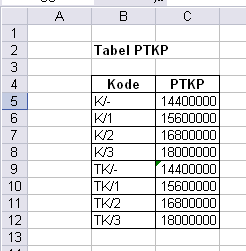
    1. Siapkan sheet untuk tabel PTKP


    Tabel PTKP untuk Perhitungan PPh Pasal 21

    Beri nama tabel (seleksi sel B5:B12, kemudian Insert>Name>Define) dengan nama PTKP.
    Asumsi nilai PTKP sesuai yang berlaku saat postingan ini saya buat.

    2. Siapkan sheet untuk Perhitungan PPh Pasal 21

    Kasus berikut misal Budi karyawan tetap dengan data sbb:
    Perhitungan PPh Pasal 21

    Contoh di atas untuk asumsi PKP s/d Rp. 25.000.000,-
    Untuk yang PKP > 25juta silahkan memodifikasi sel C18 (PPh Pasal 21 Setahun) dengan fungsi logika bertingkat.

    Untuk metode gross up, anda dapat memanfaatkan fasilitas Tools > Gool Seek.


    Read More..

    Friday, September 21, 2007

    Quickbooks Tips and Tricks Are Recommended

    This url address for Quickbooks Tips and Trick are Recommended:

    www.quickbooksgroup.com/webx/qblibrary/Tips/
    www.cpa911.com/qbtips.asp
    www.quickbooksadvisor.info/sub/15_tips.htm
    www.qbalance.com/QuickBooks_Tips_and_advice.htm
    www.acctsite.com/quickbooks/qbtips.html
    www.jonescpa.com/quickbooks_tips.htm
    www.icavts.tec.ok.us/Quick Tips for QuickBooks.pdf
    www.acctadv.com/quickbookstips.php
    www.jonescpa.com/quickbooks_tips.htm
    www.quickbooks-help.com/quickbooks-tips-and-tricks.asp


    Wikipedia Definition of Quickbooks:
    QuickBooks is an accounting software product developed by Intuit, Inc.


    There are several different "flavors" of the software tailored to specific industries; however, the underlying program remains largely the same, the chief differences being industry customized pre-built reports, industry appropriate language (clients vs. customers, etc), and industry appropriate templates for invoices, P.O.'s, and estimates.

    First launched in early 1992, QuickBooks quickly took hold as the market leader in small business accounting software. The software was popular amongst small business owners who had no formal accounting training. At the time, software packages were designed for use by accountants and cost $400 or more.

    Today QuickBooks still has the largest market share of accounting products for small businesses in the United States. Small businesses use it to track expenses, prepare and send invoices, prepare financial statements, track inventory levels, and many other tasks. It is available in a range of versions, from those suitable to startup businesses up to larger businesses with up to 20 simultaneous users. It also comes in customized versions for different industries such as contracting, professional services, manufacturing, and wholesale. It is available as desktop software or a hosted online edition.

    For most tasks, QuickBooks doesn't require its users to understand double-entry book-keeping or standard accounting procedures. Most transactions are recorded using on-line screens that closely resemble paper based forms such as invoices or checks. The system is readily adaptable to many different industries where there is no significant need for something industry specific.

    Sage Software's Simply Accounting and Peachtree Accounting are competitors to QuickBooks. Microsoft's Small Business Accounting has also recently entered the market with limited success in its first year.

    QuickBooks is also available as software as a service, which Intuit calls QuickBooks Online Edition. The user pays a monthly subscription fee rather than an upfront fee and accesses the software exclusively through secure logon via a web browser. QuickBooks Online requires an ActiveX control that operates only with the Windows operating system. Intuit hosts all of the user's data, and provides patches and regularly upgrades the software automatically.

    On June 2007 Intuit announced that Quickbooks Enterprise Solutions would run on Linux servers, whereas previously it required a Windows server to run.

    Tags: quickbooks, quickbooks tips, quickbooks tricks, quickbooks tips and tricks

    Read More..

    Tuesday, September 18, 2007

    What's New (Latest Features) In MYOB 17

    • Receive items without a supplier's bill using the Receive Items feature

    receiveitems

    receive items feature

    • Synchronise your Accounting cards with Outlook
    • Combine duplicate or similar accounts into a single account record
    • Combine duplicate or similar cards into a single card record
    • If you want to undo your last bank reconciliation
    • Improvements in creating budgets
    • Additions and improvements to the Company Data Auditor
    • You can now save changes to a recurring transaction when you record it

    All the latest features of MYOB Accounting:

    Accounts:
    Combine duplicate or similar accounts into a single account record
    Improvements in creating budgets.
    Banking:
    If you want to undo your last bank reconciliation
    Budgets:
    Improvements in creating budgets
    Cards:
    Synchronise your Accounting cards with Outlook
    Combine duplicate or similar cards into a single card record
    Company Data Auditor:
    Additions and improvements to the Company Data Auditor
    New report: Deposit Transaction
    New report: Tax Code Reconciliation Exception
    You can now preview reports before printing them from the Company Data Auditor
    Company File:
    When you start a new financial year, keep or purge transactions
    Importing and exporting:
    Identify which records you want to import
    Import and export inventory adjustments
    Inventory:
    Receive items without a supplier's bill using the Receive Items feature
    Automatically enter the Last Purchase Price for an item or the Standard Cost of an item when entering purchases
    The Item Information windows store additional information about your items
    Import and export inventory adjustments
    Jobs:
    Allocation Memo field is displayed for more transactions on two job reports
    Linked Accounts:
    New report: Linked Accounts
    OfficeLink:
    A Credit Application Form is available for sending personalised letters
    Preferences:
    Automatically enter the Last Purchase Price for an item or the Standard Cost of an item when entering purchases
    Purchases:
    Receive items without a supplier's bill using the Receive Items feature
    Automatically enter the Last Purchase Price for an item or the Standard Cost of an item when entering purchases
    Automatically enter sales order or sales quote line items on a purchase order
    New report: Deposit Transaction
    New report: Payables with Tax
    View only sales or only purchases in the Prepaid Transactions report
    Combine duplicate or similar cards into a single card record
    Reconciliation:
    If you want to undo your last bank reconciliation
    Recurring transactions
    Create a copy of a recurring transaction for more than one card
    You can now save changes to a recurring transaction when you record it
    Record pre-dated transactions when you create a recurring transaction
    Search the Recurring Transactions List by transaction name, transaction amount or due date
    Reports:
    New report: Deposit Transaction
    New report: Linked Accounts
    New report: Payables with Tax
    New report: Receivables with Tax
    New report: Tax Code Reconciliation Exception
    Select the default code used in the Tax Code Exceptions [Invoice Transactions] report
    View only sales or only purchases in the Prepaid Transactions report
    Allocation Memo field is displayed for more transactions on two job reports
    Sales:
    Identify which records you want to import
    Automatically enter sales order or sales quote line items on a purchase order
    View only sales or only purchases in the Prepaid Transactions report
    Select a posting date for To Do List transactions
    New report: Deposit Transaction
    New report: Receivables with Tax
    Start a New Financial Year:
    When you start a new financial year, keep or purge transactions
    To Do Lists:
    Select a posting date for To Do List transactions

    Read More..

    Monday, September 17, 2007

    Peachtree Accounting: Cara Praktis dan Lengkap

    Bagi yang sedang mencari referensi buku Peachtree Accounting terbaru anda bisa pilih alternatif buku berikut:
    "Cara Praktis dan Lengkap Peachtree Accounting", karangan Wiratna Sujarweni.
    Buku ini cukup mudah dipahami dan langsung dapat dipraktikan karena disertai kasus-kasus baik perusahaan jasa, dagang maupun manufaktur. Pembaca akan dituntun secara rinci untuk menghasilan laporan keuangan di berbagai jenis perusahaan tersebut.
    Kebetulan saya juga ikut memberikan masukan dalam pembuatan buku ini.


    Buku ini cukup menjadi pelepas dahaga peminat Peachtree Accounting, karena sangat jarang buku-buku serupa yang berbahasa Indonesia.
    Walaupun cukup lengkap buku ini harganya cukup terjangkau, hanya Rp. 34.000
    So .. jangan sampai ketinggalan.

    note: bagi yang kesulitan mendapatkan buku ini dapat pesan melalui saya via e-mail.
    (butzajogja[at]yahoo.com)

    Read More..

    Friday, September 14, 2007

    WANTED! Indonesian free accounting software : Cari Software Akuntansi Murah Berbahasa Indonesia, Kalau Bisa Gratis :) Tapi Berkualitas

    Cari Software Akuntansi Murah Berbahasa Indonesia, Kalau Bisa Gratis :) Tapi Berkualitas! Ada nggak ya?
    Judul saya tadi mungkin mewakili para pencari software akuntansi di Indonesia atau paling tidak saya sendiri. Murah dalam asumsi saya dibawah Rp. 100.000. Berkualitas artinya feature-nya cukup lengkap tidak hanya 'general ledger', tapi mencakup purchase, ,sales, payment hingga export data ke excel.


    Saya coba ubek-ubek di Internet dengan google dan yahoo. Susah juga ternyata. Kalau yang berbahasa Inggris sih banyak, gimana yang berbahasa Indonesia?
    Ada yang bisa membantu?


    tags: free accounting software

    Related Post:
    Choose Your Real Free Accounting Software


    Read More..

    Tuesday, September 11, 2007

    Exercise (tutorial) MYOB Accounting: Receive Money, Spend Money

    Let's assume you want to record the deposit of $10,000 cash in the business bank account to fund the initial activities of the company.

    • Go to the Banking command centre and click Receive Money window appears.
    • Click the Deposit to Account radio button. Cheque Account appears automatically in the adjacent field.
    • Type date (x/x/xx) in the Date field and pres Tab.
    • The Payor field is where you can record the writer of the cheque. However, leave it blank in this example.
    • Tab to the Amount Received field and enter $10,000 (simply enter 10000 and the amount will be formatte correctly).
    • Tab to the Payment Method field and type Cash.
    • Tab to the Memo field and type Initial funding of the company
    • Tab to the Account Name column. Here you specify an account that can explain the increase in the bank account selected at the top of the window. In accounting terms, you are increasing equity or your share of the business; therefore, the appropriate account to use would be the capital account.
    • Click the seach icon. The select from list window appears.
    • Double-click the equity account.
    • Tab to the Amount column. the ammount of $10,000 appears automatically.
    • Click Recod. The entry is saved and the windows cleared.
    • Click Cancel to return to the Banking command centre.


    Congratulations! You have just completed the first entry in this tutorial.

    Related Posts:


    Read More..

    Spending and Receive Money In MYOB Accounting

    It's simple to track money you spend and receive in your MYOB Accounting software. The Spend Money and Receive Money functions can be found in the Banking command centre. You can use the Spend Money window to record payments for purchase or expenses you won't be entering purchase orders for (using the Purchase command centre), such as postage, rent and owner drawings.


    You can use the Receive Money window to record interest or record the miscellaneous cash receipts you receive. To ensure you have accurately entered your transactions, you can reconcile MYOB's accounts with your bank statement using the Recouncile Accounts function also found in the Banking command centre.

    Related Posts:


    Read More..

    Friday, September 07, 2007

    Accounting Best Practices: Book Reviews

    Book Description:
    Praise for Accounting Best Practices, Fifth Edition


    "For a comprehensive, yet easy-to-read guide to fixing those all-too-common shortcomings in your accounting department, look no further than this excellent book. Steve Bragg provides hundreds of fixes, many of them requiring surprisingly little time or cost while providing a handy guide to common implementation pitfalls . . . I would recommend this invaluable book to anyone who is looking to enhance their existing processes, whether due to growth in their business, compliance with Sarbanes-Oxley, or just as part of their ongoing improvement process."
    —Martyn Webster, CPA, Director of FinanceXenoPort, Inc.

    "This book is critical to running an efficient and accurate accounting department. The use of RFID technology to track documents is one of many valuable tools in this latest edition. A required read for the demanding accounting manager's role."
    —Jason Charet, CPA


    "I've used Steve Bragg's Accounting Best Practices books for years as a source of ideas for improvement. Like the previous editions, the Fifth Edition has a number of new, actionable best practices as well as refinements of those ideas reported in previous editions. The books are broad enough in their perspective so that nearly any organization could find ideas that could pay back the cost of the book many times over."
    —John Temmerman, Controller Evangelical Lutheran Church in America

    "What a great resource! I have been in the accounting field for over twenty years, and I was still able to gain insight into improving processes within my office. Thanks for putting it all in one book!"
    —Tina M. Thomas, CPA, CTP, Controller Goodman & Company, LLP

    Book Info
    Provides the most advanced techniques and strategies available today to help your business cut costs and improve accounting operations-regardless of your company's size or holdings. DLC: Accounting. --This text refers to an out of print or unavailable edition of this title.

    Accounting Books
    Praise for Accounting Best Practices
    Price: $75.00
    Buy


    Read More..

    Easy-to-use Bookkeeping Software for Small Businesses with Microsoft Excel

    When it comes to choosing accounting software, this aspect is often overlooked, but it's one that's extremely important to take into account. No matter how great the software or how inexpensive, if it’s too cumbersome or hard to learn, you won’t use it. So don’t go overboard by purchasing a package that offers extra things your company doesn’t really need. Keep it simple, stay focused on your business's needs, and look for those programs that have easy interfaces.


    Excel Accounting
    Big E-Z Monthly Bookkeeping for Microsoft Excel

    Product Features:
    • Easy-to-use bookkeeping software for small businesses
    • Tracks and categorizes monthly income and expenses
    • Reconciles checkbook; determines profits; ideal for non-bookkeepers
    • Customizable Excel spreadsheet templates with built-in formulas
    • Printable forms and instruction manual (PDF) with helpful tips

    Price: $29.95
    Buy

    Read More..

    Friday, August 31, 2007

    MYOB Indonesia

    MYOB Accounting berbahasa Indonesia? Itulah yang banyak ditanyakan ke saya. Pertanyaan itu wajar semakin banyaknya orang di Indonesia memakai aplikasi ini. Memang sampai saat tulisan ini saya tulis MYOB belum (tidak?) mengeluarkan versi yang berbahasa Indonesia. Saat ini MYOB sudah sampai MYOB versi 17 dan yang Premier 11 tetapi belum ada tanda-tanda untuk berbahasa Indonesia, yang ada adalah MYOB versi Asia dengan pilihan regional International untuk Indonesia tetapi tetap berbahasa Inggris.


    "All MYOB software is backed with comprehensive services and support to ensure you get maximum value for your business"

    Tapi saya pikir ini juga tidak perlu toh kalo sudah biasa nggak akan ada masalah karena tampilan MYOB juga cukup sederhana.

    Related post:
    Langkah MYOB untuk Pemula
    Belajar MYOB (bagian 2)


    Read More..

    Thursday, August 30, 2007

    Peachtree Complete Accounting 2008: Right Choice for Your Business

    This new comer from Sage:
    Peachtree by Sage Complete Accounting 2008 combines robust core accounting with advanced features like job costing, time and billing, in-depth inventory capabilities and analysis tools. Its multi-user option improves productivity while providing control over who accesses data. Peachtree Complete Accounting 2008 provides 125+ customizable business reports and financial statements.
    For multi-user access, you must purchase one single-user box per named user or one Multi-use Value Pack for up to five named users. See System Requirements. For greater than 5 named users

    What's new in Peachtree Accounting 2008:


    1. Reporting Improvements
    2. Forms Design Improvements
    3. Decimal Settings
    4. Add Attachments
    5. Permanently Hide Navigation Centers
    6. Improved Save Records and Transaction Performance


    Product Features:

    Peachtree Complete Accounting 2008 is ideal for small business people who want accuracy, control and better business results!
    * Easy Startup, Easy to Learn

    Standard Accounting

    * General Ledger
    * Accounts Receivable
    * Accounts Payable
    * Inventory
    * Payroll Solutions
    * Time & Billing and Job Costing
    * Fixed Assets
    * Analysis and Reporting
    * Time Savers and Customization
    * Peachtree Complete Accounting 2008 Main Page

    System Requirements:
    Customer registration and acceptance of the license agreement for Peachtree Software is required.
    Microsoft® Windows® 2000 SP3, XP SP2 or Vista.
    At least 1 GHz Intel Pentium III (or equivalent) for single user and 1.8 GHz Intel Pentium 4 (or equivalent) for multiple users.
    256 MB RAM minimum, 512 MB or higher recommended; Windows Vista requires 512 MB of RAM (single or multi user.
    1 GB available hard disk space.


    visit: peachtree.com

    Read More..

    Categories